
How to remove GPS and photo metadata
A photo can reveal information in two places: in its visible contents and in the data stored with the file. Covering a sign in the picture does not remove GPS coordinates. Removing coordinates does not cover the sign.
On this page
A visible detail and a file field need different actions
Suppose you want to share a view from a window. The picture may show a street sign. The file may also carry location, camera or shooting details. You cannot tell which fields are present just by looking at the image.
Use a mask for a visible detail you want to cover. Use metadata-removal controls for the supported file data you want excluded from the copy. Whether you need either action depends on the image and the audience.
A screenshot and a camera photo can contain different metadata. Do not assume a screenshot has precise GPS coordinates, or that every camera photo has the same fields. Read the findings for the image you actually imported.
Review the metadata categories in Cloakshot
Import the image with Choose images and open it from Local album. On Review, look for the metadata findings. The sample app screen below shows three selected removal options.
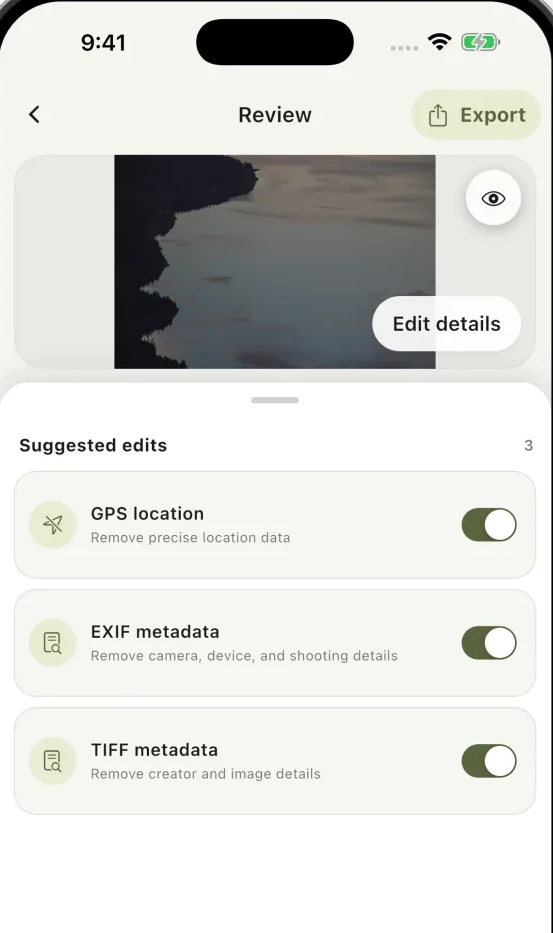
| Control | What it contains and when to remove it |
|---|---|
| GPS location | Precise location data Remove when it should not travel with the copy |
| EXIF metadata | Camera, device and shooting details Remove the supported category when unnecessary |
| TIFF metadata | Creator and image details Remove the supported category when unnecessary |
Make sure the categories you want removed are selected. The listed controls apply to the supported categories found in this image. Inspect the exported file separately if you need to check another type of metadata.
Review the photo itself too
Look for house numbers, street signs, faces, badges, tickets or text inside the picture. Metadata removal does not change those pixels.
Open Edit details and add or adjust masks for visible information you choose to hide. A landscape may also reveal its location through landmarks even after coordinate fields are removed.
Likewise, covering a face does not cover a visible name beside it. The whole-image review guide gives a method for inspecting the rest of the image.
Export a separate copy with your choices applied
Return to Review and tap Export. Cloakshot creates a separate PNG, applies the selected masks and removes the selected supported metadata categories. The main app checks those selections before opening the system Share menu.
If a check reports a problem, return to the image rather than sending the original as a workaround. The source in your gallery is left unchanged, so the metadata choices apply to the new export.
Saving and sharing the export requires an active eligible trial or Pro Lifetime. Scanning and reviewing the findings are free. Images and scan results are processed on your device; trial checks and purchases use the network.
Inspect the file you are going to send
After saving the PNG, open it and check the visible edits. If location matters for this share, use your gallery's image-information view, where available, to look for a location on that exported file.
An information panel that does not show a field is only a limited check. For a closer inspection, a metadata viewer can list the tags in the exported file. Inspect the copy, not the original. Any remaining tag needs to be read for what it actually contains.
A file can retain ordinary format information, such as its image dimensions, without carrying precise location. The selected GPS, EXIF and TIFF removals apply to supported fields; ordinary format information can remain.
When attaching the image later, choose the new PNG. Metadata removal and pixel masking only help if you send the copy you reviewed.