How to redact a screenshot on Android
Before you send a screenshot from your phone, check the account name, message header, and notification bar. Cloakshot lets you cover those details and export a copy without changing the original.
Start from your gallery or Cloakshot
Install Cloakshot from Google Play. Open one screenshot in a gallery app, tap Share, and choose Cloakshot. A compatible Android Share menu sends the image straight into the main app for review.
Gallery apps arrange their Share menus differently. If you do not see Cloakshot, open it directly, tap Choose images, and select the screenshot. Open the image from Local album.
Use the image file itself. Sharing a link to a cloud photo is a different action and may not pass an image to Cloakshot.
Keep the context, cover the details
Read through Suggested edits on the Review screen. Select the items you want to hide and leave useful context visible.
In a delivery conversation, the support team may need to read which item is missing. A public forum does not need your phone number or street address. Review the account label, avatars, and any notification text as well as the message itself.
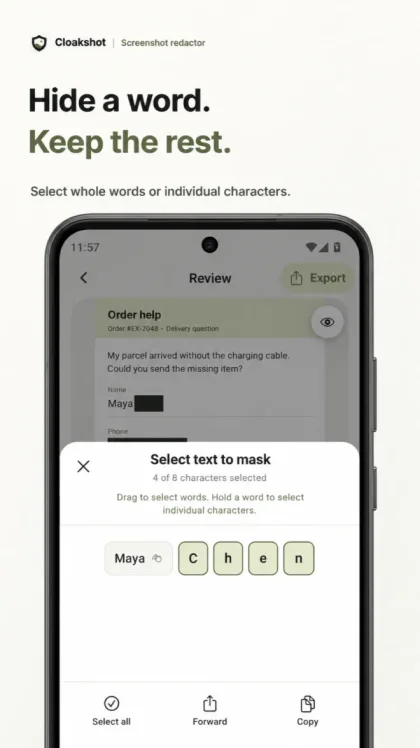
You can hide only part of a text item. Use the text-selection controls to select a word or individual characters. The example beside this guide keeps “Maya” visible and covers “Chen.”
Fix a box or add your own
Tap Edit details to open the mask editor. Zoom in before moving or resizing a box. Check that it covers the entire detail, including characters at either end.
If there is no suggestion for a private detail, use Add mask and draw over it. Tap Done to return to Review.
For a credential such as an API key, set the mask style to Solid black in Settings → Detection before opening the image for review. Cover the whole value. The API-key guide has an example of what to keep and what to remove.
Export the redacted image
Check any metadata-removal options shown on Review, then tap Export. Cloakshot creates a separate PNG with your selected masks written into the image. The main app checks the selected edits and rescans the copy before opening Android's Share menu.
Choose the destination app, or save the file using a destination your phone provides. The available options depend on the apps installed on your device.
If you save the copy, open it and inspect the masks at full size. Make sure the attachment you send is that copy. Automatic detection can miss details, so read the whole image once more.
Export access and image processing
You can scan, review, and edit masks for free. Exporting requires an active trial or Cloakshot Pro Lifetime, a one-time purchase.
Eligible Android devices can start a 14-day trial from the Cloakshot Pro screen after an online device check. It needs no account or payment details and does not renew automatically.
Images and scan results stay on your device. Android's scanning SDK may send diagnostic and usage metrics to Google. Purchases and trial checks also use the network. The Privacy Policy explains those connections.