
How to hide part of a name or text in a screenshot
Sometimes a whole-line mask hides too much. You may want to keep a first name for context while covering the surname. Cloakshot can select words or individual characters, so you can control which part of the text stays visible.
On this page
The example: Maya stays, Chen is covered
The Android example contains the fictional name Maya Chen. Four of its eight letter characters are selected for masking: C, h, e and n. The preview keeps Maya visible and covers the surname.
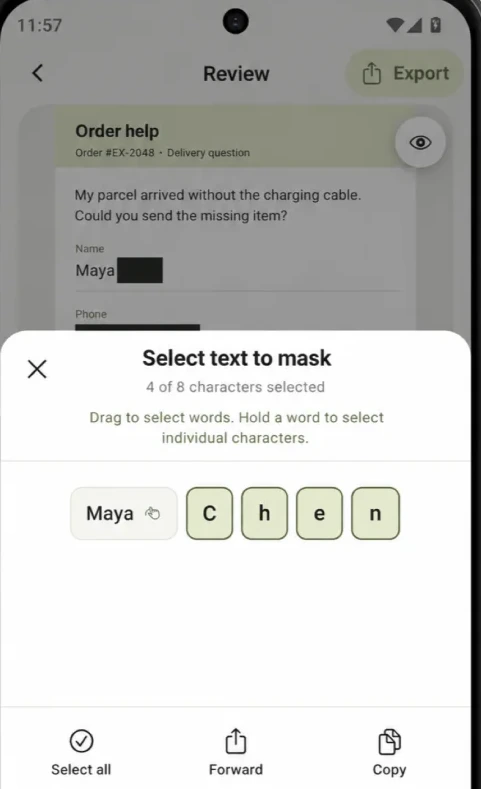
That can make a support conversation easier to follow when a first name is enough. It does not make the person anonymous if the same image still shows an address, profile photo or another identifying detail.
Open the text selection for the finding
Import the image and open it on Review. Under Suggested edits, tap the name text to edit its selection. The on/off switch controls the whole finding. This opens Select text to mask. In Edit details, you can open the same selection sheet by tapping the text card in the bottom toolbar.
The sheet shows the recognized words and a count of the selected characters. Drag to select words. Hold a word to expose its individual characters, then select the letters you want covered.
For Maya Chen, leave Maya unselected and select Chen. Close the selection sheet and read the preview. The first name should still be visible, with every letter of the surname inside the mask.
If recognition did not produce editable text for that part of the image, use a manual mask instead. Character controls depend on the text available to the editor.
Check what the mask covers on the image
A character selection is easier to judge in the enlarged image than from the selection count alone. Open Edit details, zoom in and inspect the first and last letters of the covered word.
If an edge leaves part of a letter visible, resize the mask. If it covers a nearby word that you need, adjust it while keeping the selected private text fully covered. For text wrapped onto two lines, check each line separately.
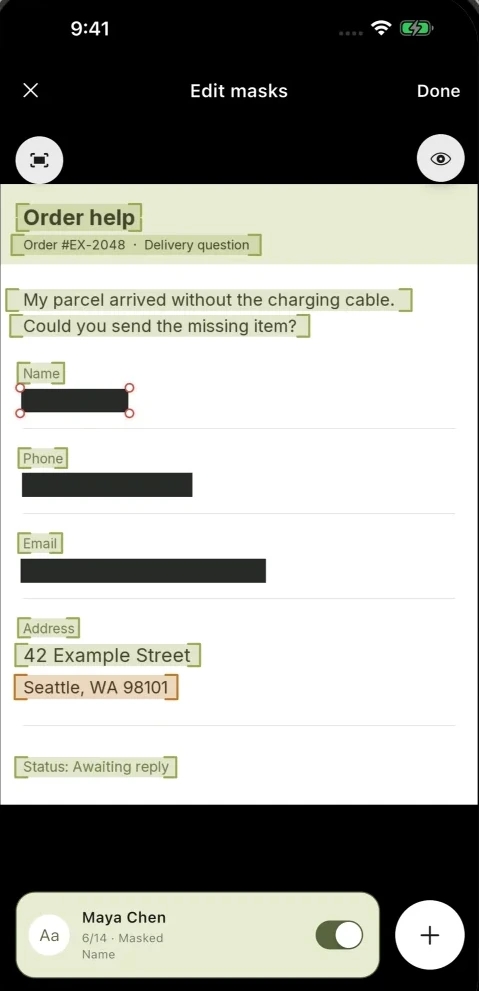
Use Add mask for another private detail. In the pictured order scene, the address lines remain visible even though contact fields are covered. Selecting a surname does not finish the review of the whole image.
When partial text is useful
| Situation | What to do |
|---|---|
| A conversation where first names help | Keep the first name and cover the surname Also check headers, avatars and quoted messages. |
| A reference number needed only for matching | Keep only the agreed portion Also check whether the remaining characters are appropriate for the recipient. |
| A label beside a private value | Keep the label and cover the complete value Also check spacing and any wrapped line. |
| An API key, password or token | Cover the complete credential Also check other copies of it in the screenshot. |
If the recipient does not need any part of a value, cover it all. Whole-word and character selection are controls for readability; they do not decide which information is safe to disclose.
Read the exported PNG, not just the preview
Return to Review and tap Export. The main app writes the selected masks into a new PNG, checks the edits and scans the copy again. The original image is left unchanged.
Open the exported file if you save it. In this example, you should be able to read Maya, and you should not be able to read Chen. Check nearby lines and other identifying details before sending it.
Scanning, reviewing and editing text selections are free. Export requires an active eligible trial or the one-time Pro Lifetime purchase. Images and scan results are processed on your device; see Support for trial and purchase access.