Choosing an editor
When to use a phone photo editor or a screenshot redactor
For one obvious detail, a simple opaque edit may be all you need. When a screenshot contains several possible private fields, compare how each workflow helps you find them and check the final copy.
On this page
One obvious area may only need a simple edit
If your screenshot has one phone number in a clear position, a photo editor that can draw an opaque block may be enough. Cover the entire value, save a separate copy and open that copy before sending it.
Use a fully opaque shape. A translucent pen stroke or a partly covered line can leave the information readable. Check the result at full size, including the edges of the edited area.
For occasional edits like that, consider whether your existing editor already gives you the result you need.
Several possible details make review more useful
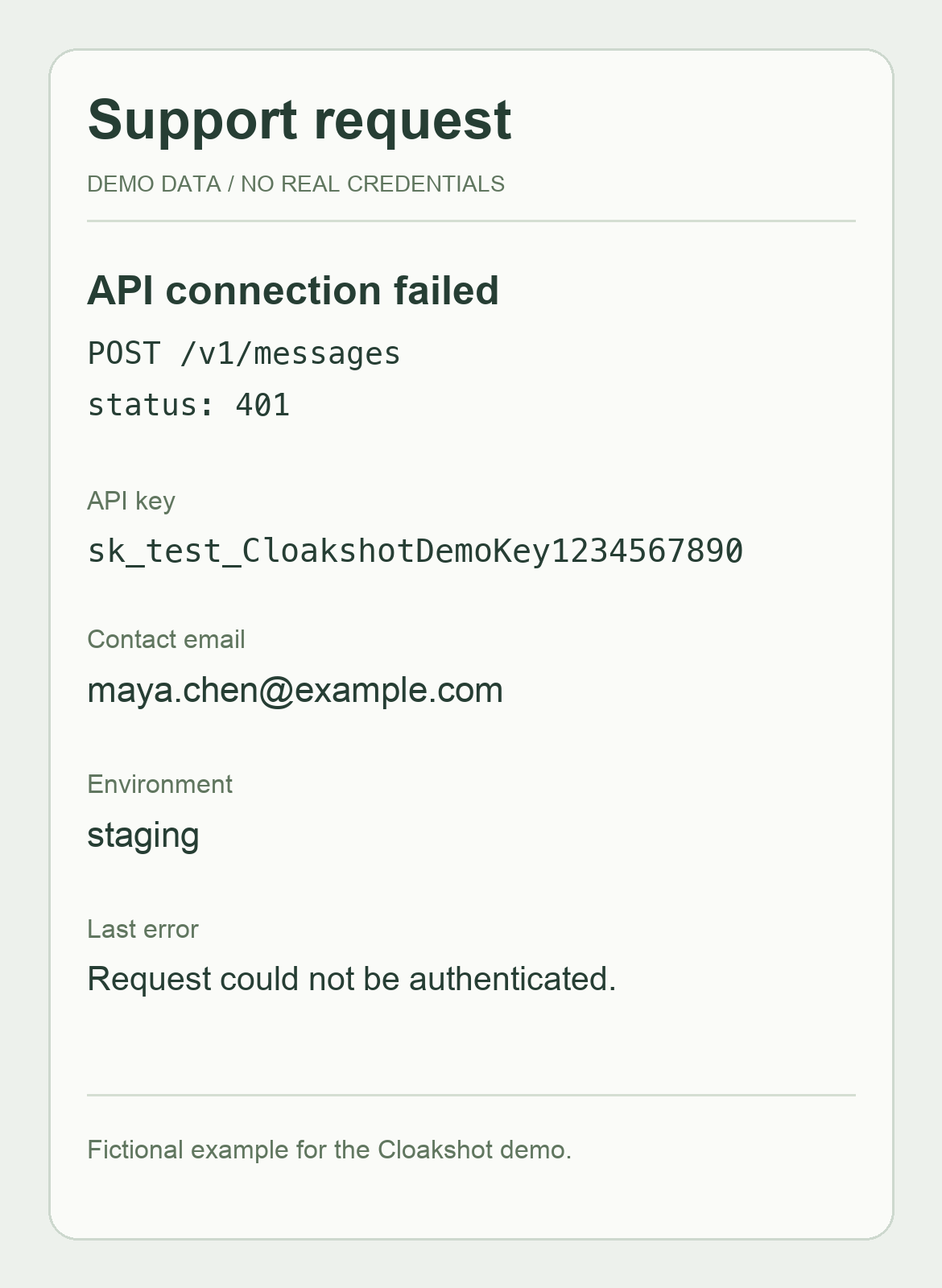
A support screenshot can contain an API key in a header, an email in a quoted message and a name elsewhere on the screen. Finding every occurrence takes more work than drawing the first block.
Cloakshot scans for possible sensitive text, faces, QR codes, barcodes and supported photo metadata. The suggestions give you places to inspect; you can adjust them or add masks for anything missed.
Its mobile app runs the image scan on your device without an account. It suits screenshots you want to send to AI, support or coworkers while keeping the request or error readable. A scan with no findings still needs a full visual review.
Hide only the part that needs hiding
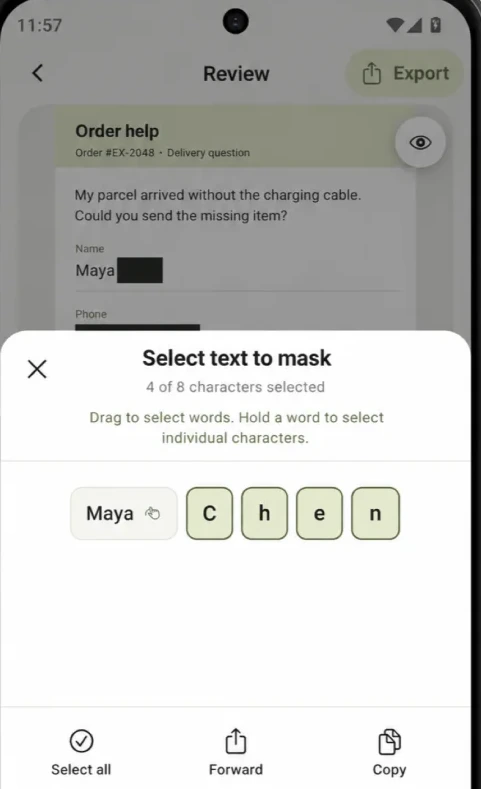
Sometimes a screenshot needs to keep a first name while hiding a surname, or preserve the label beside a private value. A large rectangle can cover both.
Cloakshot lets you adjust masks and select whole words or individual characters in supported text findings. The partial-name example keeps Maya visible while selecting Chen.
Check adjacent labels and other details too. Keeping a first name does not mean the remaining image cannot identify the person.
Check hidden file data separately
An image can have GPS or other file metadata even when the visible pixels look harmless. Covering text in the image and removing file metadata are separate tasks.
Cloakshot lets you review supported metadata categories and choose removals before export. It does not promise to remove every possible field. The metadata guide explains how to check your selections and the exported file.
Use an editor that meets your actual requirement. If location data matters, verify the saved file rather than assuming that any visual edit removed it.
Compare the saved output, not just the editor
Whichever editor you use, inspect the file you will actually attach. A correct preview does not help if you later choose the original screenshot from the gallery.
The fictional support example includes the original input and a PNG actually exported by Cloakshot. The request method, path, status and error stay readable while three selected fields are covered.
That sample uses Blur with made-up data. For a real API key, token or password, use Solid black and inspect the complete region. Revoke or rotate a credential that has already been exposed.
The main app writes masks into the exported PNG and checks selected edits and metadata removals, then scans the output again. These checks help you review it; they cannot guarantee every sensitive detail was found.
Include the price and platform in the decision
Cloakshot is a mobile app by Spawn Lau for iPhone, iPad and Android. It does not provide a desktop browser extension or batch document redaction.
Scanning and editing are free. Saving or sharing a redacted copy needs an active eligible 14-day device trial or the one-time Pro Lifetime purchase. The device trial needs an online eligibility check, no payment details and no automatic renewal.
Pro Lifetime is USD 9.99 in the US App Store as checked October 6, 2026; regional and Google Play prices can differ. See device requirements, prices and processing details. If permanent free export is essential, this paid-export model does not meet that requirement.
Try the fictional support image first. Check what you need to hide, what the recipient should still read and what appears in your saved copy. Those results are a useful basis for choosing the workflow.